 Login
Login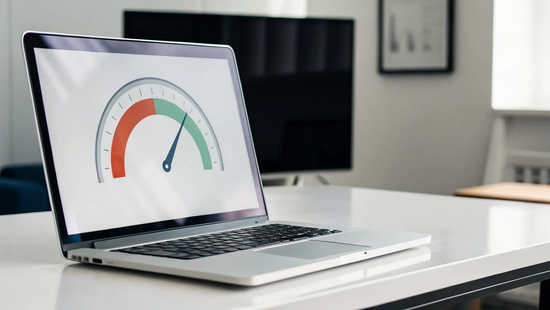
You chose your internet plan for a reason, likely based on a promised speed that sounded perfect for your needs. But how do you know if you’re actually getting the performance you pay for every month? It’s a fair question. The answer lies in running a quick speed test wifi check. This simple diagnostic gives you the hard numbers on your connection’s current download and upload speeds, offering a clear look at its performance in real time. This guide will walk you through how to get an accurate reading and what those numbers mean for your daily streaming, gaming, and work-from-home life. It’s about empowering you to understand your connection and ensure you’re getting the value you expect.
Key Takeaways
- Diagnose your connection with two tests: To find the real source of a slowdown, run a speed test with a computer plugged directly into your router and another test over Wi-Fi. This shows you whether the issue is with your internet service or your wireless setup.
- Your router's location is a game changer: The easiest way to get a better signal is to move your router. Place it in a central, elevated spot away from walls and appliances, and connect your most important devices to the faster 5 GHz Wi-Fi band.
- Different metrics matter for different tasks: Download speed is key for streaming, but low latency (ping) is what makes gaming feel responsive. For clear video calls, a strong upload speed is the most important factor, which is a major benefit of fiber internet.
What Is a Wi-Fi Speed Test?
Ever feel like your internet is moving at a snail's pace, especially when you’re paying for super-fast fiber? That video call starts to freeze, your game lags at a critical moment, or a simple webpage takes forever to load. Before you start resetting your router for the tenth time, a Wi-Fi speed test is your go-to diagnostic. Think of it as a speedometer for your internet connection, giving you a real-time snapshot of its performance. In just a few seconds, a free tool can measure how quickly data travels between the internet and your device, whether it's a laptop, phone, or tablet.
Running a test is simple. When you start one, it finds a nearby server and sends a small chunk of data to your device, timing how long it takes. This gives you your download speed. Then, it does the reverse, sending data from your device back to the server to calculate your upload speed. The results tell you if you're actually getting the performance you expect from your internet plan. It’s a quick and easy way to check your connection's health and troubleshoot any slowdowns you might be experiencing. For anyone who relies on a stable connection for work, gaming, or streaming, it’s an essential first step in diagnosing a problem and getting the performance you deserve.
What It Measures: Download vs. Upload Speed
When you look at your speed test results, you'll see two key numbers: download and upload speed, both measured in megabits per second (Mbps). Download speed measures how fast your device can pull information from the internet. This is what you use for activities like streaming movies on Netflix, loading websites, or scrolling through social media. A higher download speed means less buffering and faster load times.
Upload speed, on the other hand, is how fast you can send information from your device out to the internet. This is critical for smooth video calls, competitive online gaming, and sending large files for work or school. With many standard internet connections, upload speeds are much slower than download speeds. However, fiber internet often provides symmetrical speeds, meaning your upload speed is just as fast as your download, which is a game-changer for remote work and content creation.
Understanding Ping, Latency, and Jitter
Beyond raw speed, most tests also measure your connection's responsiveness, which is shown as ping or latency. Latency is the delay, measured in milliseconds (ms), it takes for a signal to travel from your device to a server and back. A low ping is crucial for activities that need instant feedback. For example, low latency is what makes online gaming feel smooth and responsive rather than laggy and frustrating. It also prevents that awkward delay in video conferences.
You might also see a metric called jitter. Jitter measures the variation in your ping over time. If your ping is consistently 20 ms, that's great. But if it jumps between 20 ms and 100 ms, you have high jitter. This inconsistency can cause glitches in video calls or stutters in games. A stable, low-jitter connection is just as important as high speed for a quality online experience.
How to Run an Accurate Wi-Fi Speed Test
Running a speed test is simple, but getting a result you can trust requires a little prep work. To get a true picture of your internet performance, you need to create a controlled environment. Think of it as a quick check-up for your connection. By following a few easy steps, you can make sure the numbers you see are a real reflection of the speeds you’re getting.
Your Pre-Test Checklist
Before you hit that “Go” button, take a minute to run through this quick checklist. This ensures that other factors aren’t skewing your results, giving you the most accurate reading possible.
- Pause all other activity. Make sure no other devices are streaming movies, downloading files, or on a video call. Close any data-hungry apps on the device you’re testing. You want the speed test to have the internet connection all to itself.
- Get close to your router. For a wireless test, physical distance and barriers like walls can weaken the signal. Test in the same room as your router for the strongest connection.
- Test regularly. Checking your speed every so often is a great habit. It helps you confirm you’re getting the performance you pay for and can help you spot problems early. If your results are consistently lower than expected, our support team is always ready to help.
Wired vs. Wireless: Which Test Is Better?
This is a great question, and the answer depends on what you want to measure. For the most precise reading of the internet speed coming into your home, a wired test is the gold standard. Your actual internet speed can be slower over Wi--Fi than when you connect your computer directly to the router with an Ethernet cable.
A wired test measures the direct line from your provider, showing you the maximum speed your plan can achieve. A wireless test measures the real-world speed your devices receive over your Wi-Fi network. We recommend running both. This gives you the full story: the speed your internet plan delivers versus the performance your Wi-Fi is providing throughout your home.
Our Go-To Speed Test Tools
You don’t need to pay for a fancy tool to check your connection. Several reliable and free options are available right in your web browser. These are a couple of our favorites that provide consistent and trustworthy results.
Speedtest by Ookla is a popular and comprehensive tool. It’s free, works on your computer or phone, and measures your download speed, upload speed, and ping (latency). It’s a fantastic all-around choice for getting a detailed snapshot of your connection’s health.
FAST.com is another excellent tool powered by Netflix. It has a clean, simple design and immediately begins testing your download speed, which is the most important metric for streaming video. It’s incredibly quick, easy to use, and gets straight to the point.
Making Sense of Your Speed Test Results
So, you’ve run the test and have a set of numbers in front of you: download, upload, and ping. But what do they actually mean for your day-to-day internet experience? It’s one thing to see a number, and another to understand if it’s good, bad, or just okay for what you need. Let’s break down how to interpret your results so you can see if your connection is truly meeting your needs.
Are You Getting the Speed You Pay For?
First, let's manage expectations. The speed advertised in your internet plan is the maximum speed delivered to your home, not what you'll get on every device over Wi-Fi. Think of it as the total amount of water coming into your house, while your Wi-Fi is the showerhead that distributes it. Factors like router quality, distance, and walls can slow things down.
A great result over Wi-Fi is typically within 50–200 Mbps of your plan's maximum speed. For example, if you have a 500 Mbps plan and your test shows 450 Mbps, your Wi-Fi is performing beautifully. If the gap is much larger, it might be time to troubleshoot your setup, not necessarily your service.
What's a "Good" Speed for What You Do Online?
"Good" is relative. The speed you need depends entirely on how you use the internet. A connection that’s perfect for checking emails might be painfully slow for a family of four trying to stream, game, and work all at once.
As a general guideline, download speeds of at least 100 Mbps and upload speeds of 10 Mbps are now widely considered fast enough to handle nearly any online activity. However, with the rise of 4K content and connected homes, many households find they need more. Fiber internet, with its symmetrical upload and download speeds, provides a solid foundation for even the most demanding users.
Streaming and Binge-Watching
Your movie night depends on having enough download speed. Streaming 4K video is one of the most bandwidth-intensive things we do at home. While you can get by with about 5 Mbps for a single HD stream, that number jumps significantly for higher quality. To stream in crisp 4K Ultra HD without buffering, you’ll want a connection that can consistently deliver at least 25-35 Mbps for each device that's streaming.
Competitive Online Gaming
For gamers, raw speed isn't the most important metric; latency is. Measured as "ping" in your speed test, latency is the delay between your action and the server's response. A low ping (under 40 ms is great) is what gives you a competitive edge and makes all online activities feel smoother. High latency causes lag, which is a gamer's worst enemy. Fiber internet is known for providing the ultra-low latency needed for a seamless gaming experience.
Working From Home
The remote work life relies on a stable, fast connection, especially for upload speed. While download speed affects how quickly you can pull files from the cloud, upload speed determines how clear your video looks on a conference call or how fast you can send large files to colleagues. If your video calls are constantly freezing or it takes forever to upload a presentation, your upload speed is likely the bottleneck.
Running a Smart Home
Every smart device in your home, from your doorbell camera and smart speakers to your thermostat and lightbulbs, needs a small piece of your internet connection to function. While one device doesn't use much, the demand adds up quickly. The more devices you have connected, the more overall speed you'll need to keep everything running smoothly without slowing down your primary activities like streaming or working.
What Affects Your Wi-Fi Speed?
So you ran a speed test and the results weren't what you expected. Before you get frustrated, know that a number of factors inside your own home can put the brakes on your connection. Your internet plan is just one piece of the puzzle. The physical environment of your home, the devices you use, and even your microwave can impact the speeds you actually experience. Think of it like your home's plumbing: you can have amazing water pressure from the city, but if your pipes are clogged or too narrow, you'll only get a trickle from the tap. Let's walk through the most common culprits so you can pinpoint what might be slowing you down.
Router Placement and Physical Barriers
Your Wi-Fi router sends out signals in all directions, like ripples in a pond. If you hide it in a closet, tuck it behind the TV, or leave it on the floor in a corner, you’re blocking those signals from the start. Physical objects get in the way, weakening the signal before it ever reaches your devices. The biggest offenders are dense materials like brick, concrete, and metal. Even mirrors and large appliances like refrigerators can reflect or absorb Wi-Fi waves. For the best coverage, place your router in a central, elevated location in your home, free from obstructions. It might not match your decor, but it will give your signal the best possible chance to travel freely.
The 2.4 GHz vs. 5 GHz Difference
Most modern routers are "dual-band," meaning they broadcast two separate networks: one on the 2.4 GHz frequency and one on the 5 GHz frequency. Think of them as two different highways for your data. The 2.4 GHz band is an older, more crowded highway. It has a longer range, but it's slower and more susceptible to interference. The 5 GHz band is a newer, wider superhighway. It’s much faster and less congested, but its signals don't travel as far. For the best performance on devices you use for gaming or streaming, you should connect to the 5 GHz network whenever you're close enough to the router.
Network Congestion During Peak Hours
When we talk about network congestion, it’s not just about the whole neighborhood hopping online at 7 p.m. It’s also about what’s happening on your own home network. Every single device connected to your Wi-Fi uses a slice of your bandwidth. If your kids are streaming cartoons in 4K, your partner is on a video call for work, and a gaming console is downloading a massive update in the background, your network is working hard. This is where the total speed of your internet plan matters. A plan with higher bandwidth can handle more simultaneous activity without anyone's experience suffering. Each device takes a piece of the pie, so you need to make sure the pie is big enough for everyone.
Your Device's Age and Capabilities
Sometimes, the bottleneck isn't your internet or your router, but the device you're holding. An eight-year-old laptop or a budget smartphone simply doesn't have the internal hardware to process today's lightning-fast internet speeds. The Wi-Fi technology inside your device determines the maximum speed it can achieve. If your phone only supports an older Wi-Fi standard, it can't take full advantage of a brand-new, high-speed router. It’s like trying to drive a race car on a bumpy dirt road. Before you blame your connection, consider if an outdated device might be the real reason you’re seeing slow speeds on that specific gadget.
Interference From Other Electronics
Your Wi-Fi signal is a radio frequency, and it has to compete with a lot of other signals flying through the air in your home. The 2.4 GHz band is particularly crowded, as it's shared by many common household electronics. Your microwave oven, cordless phones, garage door openers, and even some baby monitors can cause significant Wi-Fi interference. Bluetooth devices can also be a problem. If your router is sitting right next to a Bluetooth speaker, try moving it. Reducing this electronic "noise" can create a clearer path for your Wi-Fi signal and lead to a more stable and reliable connection for all your devices.
Understanding ISP Throttling
Throttling is when your internet service provider (ISP) intentionally slows down your internet connection. Some providers do this to manage network traffic during peak hours or if you exceed a monthly data cap, which is often buried in the fine print of your contract. If your speed tests are consistently much lower than the speed you’re paying for, especially at certain times of the day, throttling could be the cause. At Novos Fiber, we believe in transparency, which is why our fiber internet plans come with straightforward pricing and no hidden data caps. If you suspect you're being throttled, the first step is always to contact your provider and ask what's going on.
Why Do My Speed Test Results Fluctuate?
It’s completely normal to see your speed test results change from one test to the next. Your home internet connection is a dynamic environment, not a sterile lab. Several factors can cause these numbers to bounce around, and understanding them can help you pinpoint what’s really going on with your connection. Think of it less as a problem and more as your network responding to real-time demands. Let's look at the most common reasons for these fluctuations.
Background Apps Hogging Bandwidth
One of the biggest culprits behind a surprisingly low speed test result is your own device. Even if you’ve closed all your browser tabs, background applications can quietly consume a significant chunk of your bandwidth. Think about automatic software updates, cloud services like Dropbox or iCloud syncing files, or even a game launcher downloading a patch. Before running a test, it’s a good idea to close as many applications as possible. To get a true sense of your needs, think about what you do online and what apps might be running when you aren't actively using them.
The Number of Devices Connected
Your internet connection is a shared resource. Every single device connected to your Wi-Fi takes a piece of the available bandwidth. If you run a speed test while your kids are streaming cartoons, your partner is on a video call, and your smart thermostat is communicating with the server, your results will reflect that divided attention. The more devices you have actively using the internet, the less speed is available for the device you're testing. This is especially true for high-demand activities happening at the same time, which can make your connection feel much slower than it actually is.
The "Internet Rush Hour" Effect
Just like the highways get clogged during rush hour, the internet can experience its own version of traffic congestion. During peak hours, typically in the evenings when everyone is home from work and school, the overall demand on the network in your area can increase. With older technologies like cable internet, you share your connection with your neighbors, so this "internet rush hour" can lead to slower speeds for everyone. A major benefit of a dedicated fiber connection is that it’s far more resistant to this neighborhood slowdown, giving you more consistent performance no matter the time of day. Our fiber internet plans are built to handle that demand.
Common Wi-Fi Speed Myths, Busted
When your Wi-Fi feels slow, it’s easy to jump to conclusions. But a lot of common wisdom about internet speed is either outdated or just plain wrong. Let's clear up a few of the most persistent myths so you can get a clearer picture of what’s happening with your connection. Understanding these distinctions is the first step toward a less frustrating online experience.
Myth: Wi-Fi Speed Is the Same as Internet Speed
This is a common mix-up. Think of your internet plan’s speed as water flowing to your house through a giant pipe, and your Wi-Fi as the garden hose. Kinks or leaks in the hose affect the water pressure you actually get. Similarly, your speed over Wi-Fi can be slower than when connected with an Ethernet cable. Your router's age, its location, and even your microwave can interfere with the signal. To see the true speed your provider is delivering, you should always test your connection with a computer plugged directly into your router.
Myth: Advertised Speeds Are Real-World Speeds
You’ve seen the ads: “speeds up to 1 Gig!” That “up to” is doing a lot of heavy lifting. For many internet types, like cable, the advertised speed is a theoretical maximum, not a guarantee for your Tuesday night streaming session. Your real-world speed is affected by network congestion and the wiring in your home. While 100 Mbps is fast enough for most online activities, fiber internet is a different story. Because of its modern infrastructure, fiber optic technology consistently delivers speeds much closer to what’s advertised, giving you a more predictable and reliable connection.
Myth: One Test Is All You Need
Running a single speed test and calling it a day is like checking the weather once in the morning. A speed test is just a snapshot of your connection at a specific moment. Your results can change based on the time of day, the device you’re using, and which server the test connects to. Testing helps you check if you're getting the speed you pay for and see how your connection performs over time. For a true understanding, run tests at different times (especially during peak hours), on various devices, and in different rooms. This gives you a much more accurate overview of your home network’s performance.
How to Get Faster Wi-Fi Speeds
Okay, you've run the tests and have your numbers. If they aren't what you hoped for, don't worry. Slow Wi-Fi isn't something you just have to live with. Often, a few simple adjustments can make a world of difference, getting you closer to the speeds you're paying for. Think of it as a tune-up for your home network. From finding the perfect spot for your router to making a few tweaks in its settings, these practical steps can help you get a faster, more reliable connection for everything you do online. Let's walk through some of the most effective ways to improve your Wi-Fi performance.
Find a Better Spot for Your Router
Your router's location matters more than you might think. Wi-Fi signals are waves, and they don't like obstacles. Walls (especially brick and concrete), large furniture, and even home appliances like microwaves can weaken or block the signal before it reaches your devices. For the best coverage, place your router in a central, open area of your home, preferably up high on a shelf or media console. Avoid tucking it away in a closet, a cabinet, or at the far end of the house. A small move can lead to a big improvement in your connection quality and speed across your home.
Choose the Right Wi-Fi Band
Most modern routers are dual-band, meaning they broadcast two separate networks: one on the 2.4 GHz frequency and one on the 5 GHz frequency. The 2.4 GHz band has a longer range but is slower and more susceptible to interference from other devices. The 5 GHz band is much faster and less congested, but its range is shorter. For the best experience, connect devices that need top speeds, like your work laptop or streaming TV, to the 5 GHz band. Use the 2.4 GHz band for smart home gadgets or devices that are farther from the router.
Plug In for Critical Tasks
While Wi-Fi is convenient, nothing beats a direct, wired connection for speed and stability. An Ethernet cable connects your device straight to the router, eliminating signal interference and potential drop-offs. This is my go-to trick for any activity where a solid connection is a must. If you're a competitive gamer, hopping on an important video call for work, or downloading massive files, plugging in can give you the most reliable performance. Keep an Ethernet cable handy near your desk or entertainment center for those moments when you just can't afford to lag.
Change Your Wi-Fi Channel
Think of Wi-Fi channels as lanes on a highway. If you and all your neighbors are using the same channel, it creates a traffic jam that slows everyone down. Most routers automatically select a channel, but it isn't always the best one. You can log into your router’s settings (usually by typing its IP address into a web browser) and manually change the channel. Using a Wi-Fi analyzer app on your phone can help you find the least crowded channel in your area. For the 2.4 GHz band, channels 1, 6, and 11 are generally the best choices as they don't overlap.
Prioritize Traffic with QoS Settings
If your household has multiple people and devices all using the internet at once, your router is working hard to juggle everything. A feature called Quality of Service (QoS) lets you tell your router what traffic to prioritize. You can find this in your router’s advanced settings. For example, you can set it to prioritize video conferencing applications during work hours or give your gaming console first dibs on bandwidth in the evening. This helps ensure your most important activities get the speed they need, reducing lag and buffering even when the network is busy.
Update and Reboot Your Gear
Sometimes the simplest solutions are the most effective. Just like your computer, your router can get bogged down over time. A quick reboot (unplugging it for 30 seconds and plugging it back in) can clear its memory and resolve many common connection issues. It's also important to keep your router's firmware updated. Manufacturers release updates that can improve performance, patch security holes, and add new features. You can usually check for and install firmware updates through your router's administrative settings. A quick restart and update can often work wonders.
Secure Your Network from Wi-Fi Thieves
Is your Wi-Fi password still "password123"? An unsecured or weakly protected network is an open invitation for neighbors or even people passing by to hop on your connection. These unauthorized users consume your bandwidth, slowing down the internet for everyone in your home and creating a security risk. Make sure your network is protected with a strong, unique password using WPA2 or WPA3 encryption, which are the current security standards. You can change your password and check your security settings by logging into your router's admin panel. This ensures you're the only one using the internet you pay for.
Know When to Upgrade Your Internet Plan
If you've tried all these tips and your internet still feels sluggish, the issue might not be your Wi-Fi, but your internet plan itself. Your online needs may have outgrown what your current plan can provide. Think about how many people and devices are connected at once in your home. If you have a family of remote workers, students, and gamers all online simultaneously, you'll need a plan with enough bandwidth to handle it all. If you're consistently falling short, it may be time to explore high-speed fiber internet options that deliver the symmetrical upload and download speeds your connected home requires.
When Is It Time to Call Your Internet Provider?
You’ve moved your router, you’ve run the tests, and you’ve rebooted everything twice. If your Wi-Fi is still not performing the way you need it to, it might be time to get your internet service provider (ISP) on the line. It can be frustrating when your connection doesn’t live up to its promise, but a quick call can often clear things up or point you toward a real solution. Knowing when to make that call is key.
One of the clearest signs is a major speed gap. If your speed tests consistently show results that are dramatically lower than the speed you’re paying for, you should absolutely reach out. A small dip is normal, but if you’re paying for 500 Mbps and only getting 100 Mbps, something is wrong. Another trigger is when your internet just can’t keep up with your household. If video calls drop the moment someone else starts streaming a movie, it could mean your current plan isn’t robust enough for your needs. This is a good time to discuss different internet plans that might be a better fit for your family or home office.
Finally, don’t ignore constant instability. While speeds can vary slightly throughout the day, your connection shouldn’t be dropping out or slowing to a crawl multiple times a day. Frequent disconnects or wild speed fluctuations can point to a problem with the line coming into your home or other network issues. In these situations, it's best to get in touch with a support team who can investigate the issue from their end. You’ve done your part, now let them do theirs.
Frequently Asked Questions
My speed test result is lower than my plan's speed. Is something broken? Not necessarily, and this is a very common question. Think of your internet plan's speed as the maximum performance delivered to your home, while your Wi-Fi speed is what your individual devices actually experience. It's normal for Wi-Fi speeds to be a bit lower due to factors like your router's location, physical walls, and even interference from other electronics. A great wireless result is often within 50 to 200 Mbps of your plan's speed. If the difference is much larger, it usually points to an issue with your home Wi-Fi setup rather than your internet service itself.
Why should I bother with a wired Ethernet test if I only use Wi-Fi? Running a test with an Ethernet cable is the single best way to diagnose a problem. It measures the direct speed coming from your provider into your router, bypassing any potential Wi-Fi issues. This gives you a clean baseline. If your wired test shows you're getting the speeds you pay for, but your wireless tests are slow, you know the problem lies somewhere in your Wi-Fi network. It's the quickest way to figure out if you should be troubleshooting your router placement or calling your internet provider.
What is a good ping or latency number for gaming and video calls? For activities that need a quick response, like online gaming or video conferencing, a low ping (or latency) is more important than raw speed. A ping under 40 milliseconds (ms) is considered great and will give you a smooth, responsive experience without noticeable lag. If you see a result under 20 ms, that's even better. Connections like fiber internet are known for providing the consistently low latency that makes these real-time activities feel seamless.
I've tried the tips in this article and my internet is still slow. What's next? If you've already repositioned your router, tested a wired connection, and rebooted your equipment without seeing an improvement, it's time to let us help. You've done your part to troubleshoot, and the issue might be something outside of your home that requires a technician. A consistent gap between your plan's speed and your test results, or frequent connection drops, are clear signs that you should get in touch with your provider. Our support team can run diagnostics on our end to pinpoint the problem.
Does it matter what time of day I run a speed test? Yes, it can make a difference. You may notice slightly slower speeds during "internet rush hour," which is typically in the evening when more people in your area are online streaming, gaming, and browsing. This is especially true for older internet technologies like cable. To get the most complete picture of your connection's performance, it's a great idea to run tests at different times, including during both off-peak hours (like midday) and peak evening hours. This helps you see how your connection holds up when demand is high.