
 Login
Login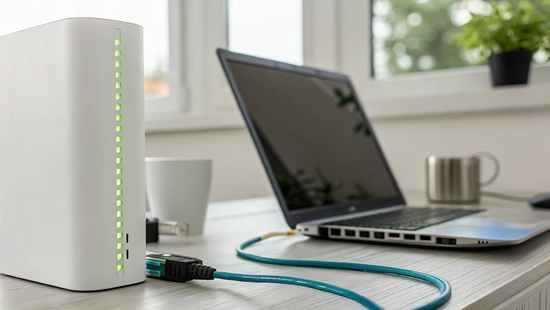
Let's break down one of tech's most confusing messages. Your device says it's connected, but it also says there's no internet. How can both be true? Think of it like this: your home has a perfectly good road leading from your driveway to the main street, but the entrance to the highway is blocked. When your wifi shows connected without internet, it means your device has successfully joined your local home network, but it can't get a signal out to the wider world. Understanding this distinction is the key to fixing the problem, and we’ll guide you through how to pinpoint and clear that roadblock.
Key Takeaways
- Understand the "No Internet" message: This error means your device is connected to your router, but your router cannot connect to the wider internet. The problem is the link between your home network and your internet provider, not the WiFi signal itself.
- Follow a logical troubleshooting order: Always start by checking if other devices are affected, then perform a full restart of your modem and router. These two steps are simple, effective, and solve the majority of connection issues.
- Know when to dig deeper or call for help: If a restart fails, try device-specific fixes like running a network troubleshooter. If the problem persists across all devices, check for a service outage before contacting your internet provider for support.
"Connected, No Internet": What Does That Really Mean?
It’s one of the most confusing tech notifications out there. Your device clearly shows full WiFi bars and says you’re connected, but nothing will load. This frustrating message means your device has successfully joined your local network, but it can't get a signal out to the wider world. Think of it like having a perfectly good road from your driveway to the end of your street, but the main highway entrance is blocked. You can move around your neighborhood, but you can’t go anywhere else.
Understanding this distinction is the first step to fixing the problem. Your device is talking to your router just fine, but for some reason, your router isn't connecting to the internet. This could be due to a simple glitch, a problem with your internet service provider, or a misconfiguration in your settings. Before you start unplugging everything, let’s break down what’s happening behind the scenes. Knowing the difference between your local network and the internet will help you pinpoint where the connection is failing.
Your Network vs. The Internet: What's the Difference?
Your local network, often just called your WiFi network, is the private system inside your home. It includes your router and all the devices connected to it, like your laptop, phone, and smart TV. When you see a strong WiFi signal, it just means your device has a solid connection to your router, not necessarily to the internet. The internet is the massive, global network that connects your local network to everything else in the world. Your Internet Service Provider (ISP) is the company that builds the bridge between your router and the internet. We believe that bridge should be built on trust, providing a reliable connection so your local network can always reach the outside world.
Decoding the "No Internet" Warning
That "No Internet" warning is your device’s way of saying it tried to reach the internet through your router but failed. One of the most common technical reasons this happens is an issue with your IP address, which is the unique address your device uses to identify itself online. If your router fails to assign a valid IP address, your device might give itself a temporary one that starts with 169.254. Seeing this is a major red flag. It tells you that while your device is on the network, it doesn't have a real address to send or receive data from the internet. If you're ever stuck on a problem like this, our local support team is always here to help you figure it out.
Common Reasons Your WiFi Isn't Working
Seeing that "Connected, No Internet" message is incredibly frustrating, especially when you have work to do or a show to stream. The good news is that your device is talking to your router, which means you've already solved half the puzzle. The problem is that your router isn't connecting to the wider internet. This usually boils down to just a few common culprits, from a simple glitch to a setting that’s gone haywire. Let's walk through the most likely reasons you're seeing this error so you can figure out what's going on.
Router or Modem Glitches
Sometimes, the simplest explanation is the right one. Your router or modem, the hardworking hubs of your home network, can occasionally get stuck or experience a temporary glitch. Just like a computer, they have internal components that can freeze up, preventing them from properly communicating with your internet provider. This can happen for all sorts of reasons, from a minor power flicker to a software hiccup. Even though your phone or laptop can still connect to the router's WiFi signal, the router itself has lost its connection to the internet. Before you dive into more complex fixes, remember that a quick restart often clears these internal errors and gets things running smoothly again.
ISP Service Outages
The problem might not be inside your home at all. Occasionally, the issue lies with your internet service provider (ISP). An outage in your area, whether from maintenance, equipment failure, or even bad weather, will cut off your internet access completely. When this happens, your WiFi network will still function locally, but it won't have a path to the outside world. You can usually check for service interruptions by visiting your provider's website from your phone (using cellular data) or by using a third-party outage detector site. As a local provider, we at Novos Fiber are committed to keeping our communities connected and will always provide updates if there are issues on our end.
Network Setting Conflicts
Your devices manage their network connections using a set of rules and addresses, like an IP address. Sometimes, these settings can get scrambled or create a conflict. For example, two devices on your network might accidentally be assigned the same IP address, causing confusion for your router. A device might also hold onto old, incorrect network information that prevents it from getting a fresh, working connection. These conflicts stop your device from successfully accessing the internet, even when it appears to be properly connected to the WiFi. This is often a software-level issue on your computer or phone rather than a problem with your router or internet service.
DNS Server Issues
Think of a Domain Name System (DNS) server as the internet's phonebook. It translates human-friendly website names (like NovosFiber.com) into computer-friendly IP addresses. If the DNS server your device is using is down, slow, or experiencing issues, your browser won't be able to find the websites you're trying to visit. This creates the illusion that your internet is down, even though your connection is technically active. Your ISP usually assigns a DNS server automatically, but these can sometimes be unreliable. Switching to a public DNS server, like Google's or Cloudflare's, is a common and effective fix for this specific problem.
Outdated Software or Firmware
Software is what makes your hardware work, and when it's out of date, things can get buggy. This applies to both your devices and your router. The network drivers on your computer or phone are specific pieces of software that manage its WiFi connection. If they become outdated or corrupted, they can cause connection problems. Similarly, your router runs on its own software, called firmware. Manufacturers release firmware updates to fix bugs, patch security holes, and improve performance. If your router's firmware is old, it might struggle to maintain a stable connection to the internet, which is why our high-speed fiber internet works best with up-to-date equipment.
Firewall or Security Software Blocks
The firewall or antivirus software on your computer is designed to protect you from online threats by blocking suspicious network traffic. While this is a good thing, these security programs can sometimes be a little too aggressive. They might mistakenly identify normal internet activity as a threat and block your connection as a precaution. This can happen after a software update or if a security rule is misconfigured. A quick way to check if this is the problem is to temporarily disable your firewall or antivirus software. If your internet access returns immediately, you've found the culprit and can adjust its settings.
First, Pinpoint the Problem
Okay, let’s figure this out. Before you start unplugging every cord in sight, it’s best to do a little detective work. That "Connected, no internet" message can feel confusing, but it gives us a great starting point. It means your device is successfully talking to your router, creating a local network, but the conversation stops there. The connection to the wider internet is broken somewhere along the line. Taking a moment to pinpoint where that break is will save you a lot of time and frustration.
The goal is to determine if the issue is with a single device, your home network equipment (like your router), or your internet service itself. By following a few simple, logical steps, you can quickly narrow down the culprit. Think of it as tech-triage. We’ll start with the easiest checks and work our way from there, helping you get back online as quickly as possible. This methodical approach means you won't waste time trying to fix a router problem when the issue is actually a widespread service outage, or vice versa. Let's get started.
Test Other Devices
First things first, let’s see if the problem is with the device you're using or if it's a network-wide issue. Grab your phone or another laptop and see if you can get online with it. If your other devices connect to the WiFi without a problem, then you know the internet is working. The issue is likely isolated to your original device’s settings or hardware. However, if none of your devices can connect, it’s a strong sign that the problem lies with your router, modem, or the internet service coming into your home. This simple test is the most important first step in diagnosing the problem.
Check for Local Outages
If none of your devices can connect, it’s time to see if the problem is bigger than your house. Use your smartphone’s cellular data (since your WiFi isn’t working) to check for service disruptions in your area. The best place to start is your internet provider’s website or social media pages. At Novos Fiber, we keep our customers informed through our support page. You can also use a third-party website that tracks service status across various providers. If there is a confirmed outage in your area, unfortunately, the only solution is to wait for the provider’s technicians to resolve it.
Read Your Router's Lights
Your router often communicates its status through a series of small indicator lights, and learning to read them can give you instant clues. Take a quick look at your router and modem. Generally, a steady green or blue light means everything is connected and working as it should. If you see blinking or solid red, orange, or amber lights, that’s usually a signal that something is wrong. The exact meaning can vary between manufacturers, but a non-green or non-blue light is a universal sign of a problem. This quick visual check can confirm if your equipment is struggling to get a signal from your provider.
Quick Fixes to Try First
Before you start worrying about technical settings or calling for help, let's walk through a few simple steps that solve this problem most of the time. These are the go-to fixes for a reason: they’re quick, easy, and surprisingly effective. Think of this as your first-aid checklist for an unhappy internet connection. More often than not, one of these five steps will get you back online and browsing in just a few minutes. We’ll start with the most classic trick in the book and work our way from there.
1. Restart Your Router and Modem
It’s the oldest advice in tech support, but restarting your equipment really works. A simple reboot can clear out temporary glitches and memory clogs that might be stopping your router from connecting to the internet. First, unplug the power cords from both your modem and your router. Wait about 30 seconds to give them a moment to fully power down. Then, plug the modem back in first. Wait for all its lights to become stable and solid, which usually takes a minute or two. Once the modem is ready, plug your router back in and give it another minute to boot up.
2. Check Your Cable Connections
Sometimes the problem is physical, not digital. A loose cable can easily disrupt your connection. Take a moment to inspect all the wires connected to your modem and router. Check the power cords to make sure they are plugged securely into the devices and the wall outlet. Then, trace the main cable that brings the internet into your home and ensure it's tightly connected to the modem. Finally, check the Ethernet cable that runs between your modem and router. A gentle push to make sure each one is snug in its port can make all the difference. If you suspect a faulty wire, try swapping it with a new Ethernet cable if you have one handy.
3. "Forget" and Reconnect to the WiFi Network
Your device stores information about every WiFi network it joins. Occasionally, this saved data can become corrupted, causing connection problems even when the network itself is fine. The solution is to make your device "forget" the network and reconnect from scratch. This forces it to establish a fresh connection. You can find this option in your device's WiFi settings. Just select your home network and choose "Forget." Be sure you know your WiFi password, as you'll need to re-enter it to reconnect to the network. This simple step often clears up any confusion your device might have about connecting.
4. Turn Off Your VPN
A VPN, or Virtual Private Network, is a great tool for privacy, but it can also be a source of connection issues. A VPN routes your internet traffic through a separate server, and if that server is down or experiencing problems, it will seem like your internet is out. To see if this is the cause, try temporarily disabling your VPN. If your internet access immediately returns, you’ve found the culprit. The issue is likely with your VPN service, not your home internet. You can try connecting to a different server through your VPN app or contact your VPN provider for support.
5. Disable and Re-Enable Your Network Adapter
Think of your device's network adapter as the specific part that handles all its communication with your WiFi network. Just like restarting your router, you can restart this single component without rebooting your entire computer. This can clear up software snags that are preventing a proper connection. On a Windows PC, you can do this by going to the "Network & Internet" settings, finding your adapter options, right-clicking your WiFi adapter, and choosing "Disable." Wait a few seconds, then right-click it again and choose "Enable." This quick reset can often restore your connection instantly.
Deeper Fixes for Stubborn Connection Issues
Okay, you’ve tried the quick fixes and your internet is still on the fritz. Don’t throw in the towel just yet. Sometimes, the problem is a little deeper than a simple restart can solve. These next steps are a bit more technical, but they’re some of the most effective ways to fix stubborn connection issues. We’ll walk through them one by one. If you get stuck, remember that our local support team is always here to help.
Flush Your DNS and Renew Your IP Address
Think of the DNS (Domain Name System) as your computer's address book for the internet. When you type a website name, the DNS finds its corresponding IP address. Sometimes, this address book gets outdated or corrupted, leading to connection errors. Flushing your DNS cache clears out this old information, forcing your computer to find the fresh, correct addresses. While you're at it, renewing your IP address tells the network to assign you a new one, which can resolve conflicts. You can do both of these using the Command Prompt on Windows or the Terminal on a Mac. It’s a quick process that can often clear up mysterious connection problems.
Change Your DNS Server
If flushing the DNS didn't work, the DNS server itself might be the issue. Your internet service provider usually assigns a default DNS server, but it isn't always the fastest or most reliable option. You can manually switch to a public DNS server, like Google's (8.8.8.8) or Cloudflare's (1.1.1.1). Many people find these servers offer a speedier and more stable connection. You can make this change in your device's network settings. It’s like changing your route to work to avoid a known traffic jam; you’re just telling your computer to take a more efficient path to get information from the internet.
Find and Resolve IP Address Conflicts
An IP address is a unique identifier for each device on your network, like a house number on a street. An IP address conflict happens when two devices accidentally get assigned the same number, which confuses your router. This can kick one or both devices offline. To fix this, you can force your device to release its current IP address and request a new one from the router. On Windows, this is done with a couple of simple commands in the Command Prompt. On a Mac, you can do this by renewing the DHCP lease in your Network settings. This ensures every device has its own unique address again.
Reset the TCP/IP Stack
If you’re still having trouble, you can try resetting the TCP/IP stack. TCP/IP is the fundamental set of rules that governs how your computer communicates over the internet. A reset essentially rebuilds this communication protocol from scratch, clearing out any misconfigurations or corruption that might be blocking your connection. Think of it as a deep clean for your computer's networking software. Be aware that this will likely erase your saved WiFi networks, so make sure you have your password written down before you start. This is a powerful fix that can solve some truly persistent issues.
Disable IPv6
The internet is transitioning from an older addressing system (IPv4) to a new one (IPv6). While IPv6 is the future, some older routers or network configurations can have trouble with it, causing connection drops. As a troubleshooting step, you can try temporarily disabling IPv6 on your computer. If your internet connection suddenly becomes stable, you’ve found the culprit. You can do this within your network adapter's properties on Windows or in the Network settings on a Mac. This isn't a permanent solution, but it can restore your connection while you investigate router compatibility or other underlying issues.
Update Your Network Drivers
A network driver is a piece of software that allows your computer’s operating system to communicate with its physical network hardware, like your WiFi card. If this driver is outdated or corrupt, it can cause all sorts of connection problems, including the "connected, no internet" error. Manufacturers regularly release driver updates to fix bugs and improve performance. You can usually find the latest drivers by visiting the website of your computer's manufacturer (like Dell or HP) or the manufacturer of the network card itself. Keeping your drivers updated is good practice for a smooth and stable connection.
Update Your Router's Firmware
Just like your computer, your router has its own software, called firmware. This firmware controls everything the router does, from broadcasting a WiFi signal to keeping your network secure. Manufacturers release firmware updates to patch security holes, fix bugs, and improve performance. An outdated firmware version could be the source of your connection woes. To check for an update, you’ll need to log in to your router’s administrative panel through a web browser. The process varies by manufacturer, but it’s a critical step for maintaining a healthy and secure home network.
Reset Your Network Settings
This is one of the last things to try on your device, as it’s a bit of a "scorched earth" approach. Resetting your network settings will erase all your custom configurations and return them to their factory defaults. This includes all saved WiFi networks and passwords, VPN configurations, and any custom DNS settings you’ve made. It’s a powerful move that can clear up deep-seated software issues that other fixes can’t touch. If you’ve tried everything else on this list without success, a network reset might be what finally gets you back online. Just be prepared to set up your connections again from scratch.
Is It Your Device or Your Router?
So, you’ve tried the quick fixes, but that pesky “Connected, no internet” message is still hanging around. Now it’s time to play detective and figure out where the problem is really coming from. Is it your laptop that's being difficult, or is your router the one giving you the silent treatment? A few simple tests can help you pinpoint the source, which saves you a ton of time and frustration. Let's walk through how to determine whether the issue is with your device or your network equipment.
How to Isolate the Source of the Problem
The quickest way to narrow things down is to see if the internet is out for everyone or just for you. Grab your phone or another laptop and try to connect to the same Wi-Fi network. If your other devices connect just fine, the issue is isolated to your original device. If nothing can get online, the problem likely lies with your router or your internet service. Another clue is to look at the status lights on your router. Generally, a steady green or white light means all systems go, while a blinking red or amber light signals trouble. If you see concerning lights, it might be time to check our support page for outage information in your area.
Run Your Device's Network Troubleshooter
If you've determined the problem is with a specific device, your next step is to use its built-in helper. Most operating systems have a network troubleshooting tool designed to automatically find and fix common connection problems. On a Windows PC, you can find this by going to Settings, then System, Troubleshoot, and running the "Network and Internet" troubleshooter. This process can often resolve issues without any extra effort on your part. Apple devices have a similar feature called Wireless Diagnostics that can help you fix Wi-Fi connection issues. These tools are surprisingly effective and should be one of your first stops when troubleshooting a single device.
Check Your Firewall and Security Software
Sometimes, the software meant to protect you can get a little overzealous. Your firewall or antivirus program can occasionally mistake safe internet traffic for a threat and block your connection as a result. A quick way to check this is to temporarily disable your security software and see if your internet access returns. If it does, you've found the culprit! You don't have to leave your device unprotected; just go into your software's settings and add an exception for your browser or the specific application being blocked. This tells your firewall to let the connection through while still keeping you safe from actual threats.
When to Call Your Internet Service Provider
You’ve restarted, reconnected, and reset everything you can think of, but that "No Internet" message is still staring back at you. It’s frustrating, but don’t worry. Sometimes the problem is bigger than your home network, and it’s perfectly fine to call in the professionals. If you’ve worked through the fixes in this guide and are still stuck, it’s probably time to contact your internet service provider. They have the tools and access to see what’s happening on their end of the connection.
Signs It's Time to Call for Backup
If you've tried all the troubleshooting steps and your internet is still down, that’s your clearest sign to call for help. The issue might not be with your equipment at all, but with the service itself. Before you dial, it’s a good idea to do a quick check for a service outage in your area. Most providers, including us here at Novos Fiber, post updates on their websites during an outage. You can check our support page for any known issues. If there’s a widespread problem, you’ll save yourself a phone call and know that a fix is already in the works. If you don’t see any outage alerts, it’s time to pick up the phone.
What to Have Ready Before You Call
To make your call as quick and painless as possible, a little prep work goes a long way. Having key information ready helps the support team diagnose the issue much faster. Before you call, try to gather a few things: your account number, a brief description of the problem, and any specific error messages you’re seeing. It’s also incredibly helpful to let them know all the troubleshooting steps you’ve already tried. This prevents them from asking you to restart your router for the tenth time. When you connect with a local team like ours, providing these details helps us get your service back up and running that much sooner.
How to Prevent Future WiFi Headaches
Dealing with WiFi issues is a pain, but the good news is you can take a few proactive steps to keep your connection strong and stable. Instead of waiting for that dreaded "Connected, no internet" message to pop up again, you can build a more resilient home network. A little prevention goes a long way in making sure your internet is there when you need it most, whether you're on a critical work call or settling in for a movie night.
Keep Your Software and Firmware Updated
Think of software updates as a tune-up for your devices. They aren't just for adding new features; they often include important security patches and performance improvements. Make sure your computer’s operating system and your router's software (called firmware) are always up to date. Manufacturers release these updates to fix bugs that can cause frustrating connectivity problems. Most modern routers can be set to update automatically, so check your router’s settings to enable this feature and save yourself a future headache.
Switch to a Public DNS Server
Here’s a slightly more technical tip that can make a big difference. Your DNS server acts like the internet's phone book, translating website names (like NovosFiber.com) into IP addresses your computer can understand. Sometimes, the default DNS server from your provider can get bogged down. Switching to a public DNS server, like Google’s (8.8.8.8) or Cloudflare’s (1.1.1.1), can often lead to faster and more reliable browsing. It’s a simple change to make in your network settings and can sometimes resolve persistent connection issues.
Optimize Your Router's Location
Where you place your router has a huge impact on your WiFi quality. Tucking it away in a closet or at the far end of your house is a recipe for dead zones and weak signals. For the best results, place your router in a central, open area of your home, preferably elevated on a shelf. Keep it away from thick walls, mirrors, and appliances like microwaves, which can interfere with the signal. A better location helps the WiFi signal travel more freely, giving you stronger signal strength and more consistent coverage throughout your home.
Go Wired for Demanding Activities
While WiFi is convenient, it’s not always the best choice for every activity. For things that demand a rock-solid, high-speed connection, nothing beats an old-school Ethernet cable. If you’re a gamer who needs low latency, a remote worker who can’t afford to drop a video call, or you’re streaming a 4K movie, plugging your device directly into the router is the way to go. A wired connection is faster and more reliable than WiFi, eliminating interference and potential dropouts when it matters most.
Consider a Mesh Network for Better Coverage
If you live in a large home or a house with a tricky layout (like multiple stories or thick walls), a single router might not be enough to cover every corner. If you’re constantly battling dead zones, it might be time to look into a mesh network. A mesh network system uses multiple WiFi points placed around your home to create a single, seamless network. This blankets your entire space in strong, reliable WiFi, eliminating dead spots and ensuring you have a great connection no matter where you are.
How Fiber Internet Helps Avoid These Problems
If you’ve worked through all the troubleshooting steps and still find yourself battling a spotty connection, it’s easy to get frustrated. But what if the problem isn’t your router, your device, or a setting you forgot to check? Sometimes, the root cause is the very technology delivering the internet to your home. This is where upgrading to fiber internet can make a world of difference.
Unlike traditional cable or DSL internet that uses copper wires, fiber optic technology sends data as pulses of light through glass strands. This method is naturally more stable and resistant to outside interference, like electrical storms or your neighbor's microwave. The result is a rock-solid connection that’s far less likely to drop unexpectedly and leave you with that dreaded “Connected, no internet” error.
Beyond reliability, fiber offers a massive advantage in speed and bandwidth. With symmetrical upload and download speeds, everyone in the house can stream, game, and join video calls at the same time without causing a digital traffic jam. Cable internet often shares a connection among several homes, so your speed can slow to a crawl during peak hours. A dedicated fiber line means the speed you pay for is the speed you get, no matter what your neighbors are doing. By providing a more robust and consistent pipeline to the internet, fiber helps eliminate many of the underlying issues that cause your WiFi to fail in the first place.
Related Articles
Frequently Asked questions
My internet works on my phone but not my laptop. What does that mean? This is actually great news because it tells you the internet coming into your house is working perfectly. The problem is isolated to your laptop. This means you can skip troubleshooting your router or calling your internet provider and focus on the device-specific fixes. The issue is likely a software glitch, a firewall setting, or an outdated network driver on your laptop. Try running your computer's network troubleshooter or "forgetting" and rejoining the WiFi network to start.
Why is restarting my router and modem always the first suggestion? It might sound like a cliché, but it’s the most common fix for a reason. Your router and modem are small computers, and just like your laptop, they can get bogged down by temporary glitches or memory errors. A simple restart gives them a clean slate, forcing them to clear out any snags and re-establish a fresh connection with your internet provider. It’s a quick, easy step that resolves a surprising number of issues without affecting any of your saved settings.
You mentioned changing my DNS server. Is that safe and is it difficult to do? Yes, it's completely safe and a very common practice for improving internet performance. Think of a DNS server as the internet's address book. Sometimes the one your provider assigns you can be slow or unreliable. Switching to a trusted public DNS server, like Google's or Cloudflare's, is like getting a faster, more accurate address book. The change is made within your device's network settings and is easy to reverse if you ever want to switch back.
How can I tell the difference between a problem with my WiFi and a service outage in my area? The quickest way to figure this out is to first check if any other devices in your home can get online. If everything is offline, the problem is likely bigger than just your equipment. The next step is to use your phone's cellular data to visit your internet provider's website or a third-party outage tracking site. If they report a service disruption in your area, you know the issue is on their end and all you can do is wait for them to fix it.
Will upgrading to fiber internet really prevent these kinds of connection problems? While no technology is immune to the occasional hiccup, fiber internet is fundamentally more stable and reliable than older technologies like cable or DSL. Fiber sends data using light signals through glass, which isn't susceptible to electrical interference or signal degradation over distance. Furthermore, unlike cable internet which often shares a connection among neighbors, a fiber connection is typically dedicated to your home. This means you get a more consistent, robust pipeline to the internet, which significantly reduces the chances of experiencing these frustrating connection drops.